VendorVault User Guide
Are you a small business owner who prefers typing commands to get things done quickly?
VendorVault is a desktop app for managing your vendors and inventory all in one place. It combines the speed of typing commands with the simplicity of a visual interface, allowing you to organise your vendor contacts and track your products efficiently.
Spend less time searching through spreadsheets and switching between apps. VendorVault keeps your business information organised so you can focus on what matters most: growing your business.
Quick start
Follow these steps to get VendorVault up and running:
Ensure Java 17 or above is installed.
- Full guide for installation here. If you are familiar with the process, you can download Java directly here.
Mac users: Ensure you have the precise JDK version prescribed here.
- Full guide for installation here. If you are familiar with the process, you can download Java directly here.
Download the latest version of VendorVault here.
- Specifically, choose to download the
.jarfile. - If necessary, move the file to a folder you want to use as the home folder for VendorVault.
- Specifically, choose to download the
Open a terminal for your Operating System (OS) and launch VendorVault:
Open Command Prompt and run:
cd PATH_TO_FOLDER_CONTAINING_JAR_FILE
java -jar vendorvault.jar
For example, if you placed the .jar file in your Downloads folder:
cd C:\Users\YOUR_USERNAME\Downloads
java -jar vendorvault.jar
Open Terminal and run:
cd PATH_TO_FOLDER_CONTAINING_JAR_FILE
java -jar vendorvault.jar
For example, if you placed the .jar file in your Downloads folder:
cd ~/Downloads
java -jar vendorvault.jar
Open Terminal and run:
cd PATH_TO_FOLDER_CONTAINING_JAR_FILE
java -jar vendorvault.jar
For example, if you placed the .jar file your Downloads folder:
cd ~/vendorvault
java -jar vendorvault.jar
If you get a permission error, make the file executable first: chmod +x vendorvault.jar
VendorVault should start up. Note how the app contains some sample data.
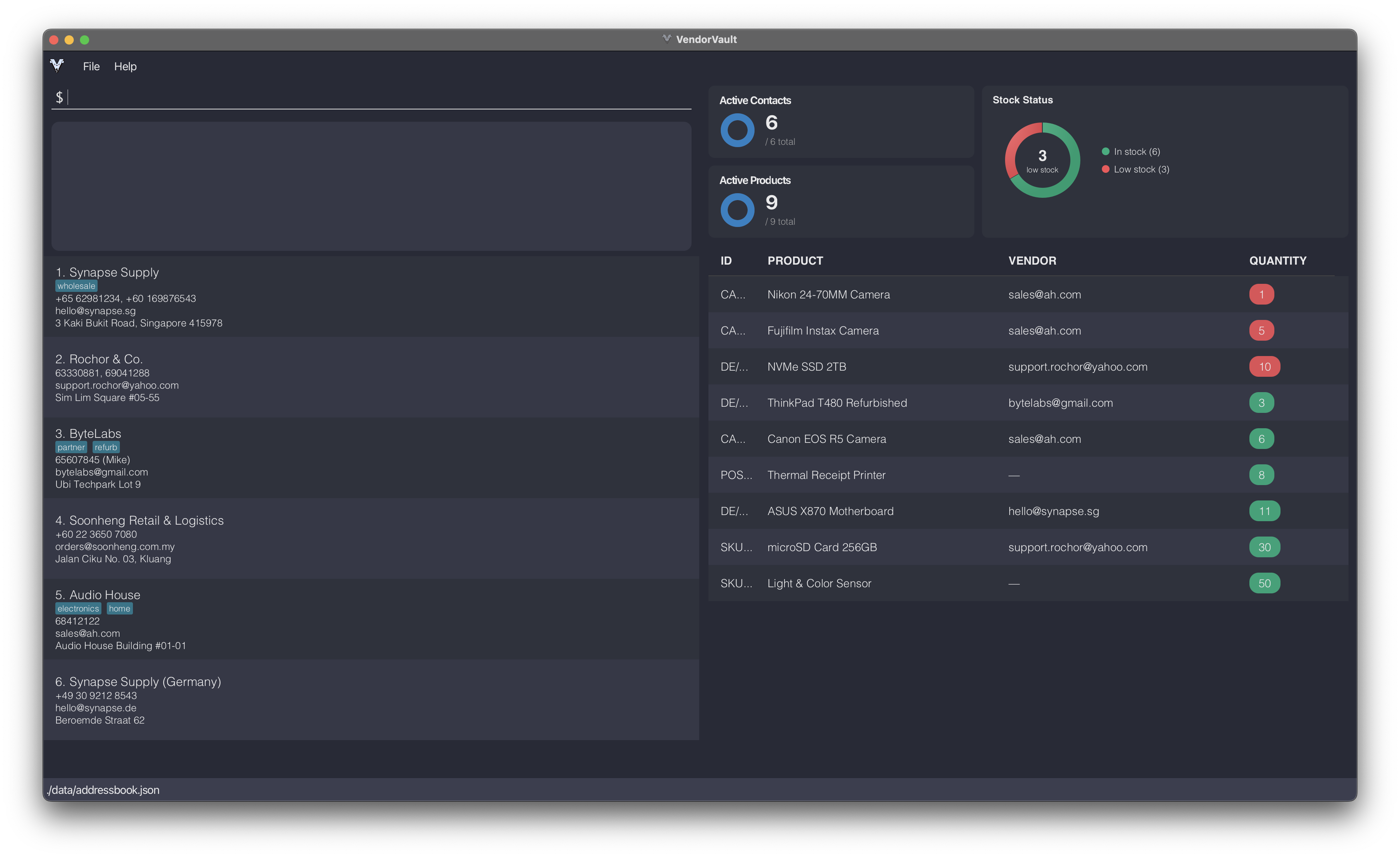
4. At the top left of the app, you should see a box where you can start typing commands. For more information, you can access the list of available commands with help.
Some example commands you can try:
add n/TechSource Electronics p/61234567 e/sales@techsource.com a/15 Kallang Way, Singapore: Adds a vendor contact namedTechSource Electronics.delete sales@techsource.com: DeletesTechSource Electronics.addproduct id/SKU-1003 n/Arduino Uno R4 q/50 th/10 e/sales@techsource.com: Adds a productArduino Uno R4.deleteproduct SKU-1003: DeletesArduino Uno R4.
5. Refer to the Features below for details of each command, or Command Summary for a quick summary of all commands.
Tip: Press the UP or DOWN arrow keys to navigate through your previous commands easily.
Features
Before you begin
VendorVault keeps your data in one of three states:
State | What it means | Related commands |
|---|---|---|
| Active | Visible on the home page | listall |
| Archived | Hidden but recoverable | archive / archiveproduct |
| Deleted | Permanently gone | delete / deleteproduct / clear / clearproduct |
When in doubt, archive, don't delete.
Note about destructive commands:
- You can use undo to restore the data only within the same app session.
- If you need the contact or product again, consider using
archive/archiveproduct.
Notes about the command format:
- Words in
UPPER_CASEare the parameters to be supplied. - Items in square brackets such as
[t/TAG]are optional. - Parameters can be supplied in any order.
- To skip the confirmation prompt, use the
-yflag:deleteproduct -y PRODUCT_IDENTIFIER
Managing Vendor Contacts
Adding a contact: add
Adds a vendor contact. Emails are automatically converted to lowercase to avoid duplicates.
Format:
add n/NAME p/PHONE_NUMBER e/EMAIL a/ADDRESS [t/TAG]…
Examples:
add n/Adafruit Industries p/64601234 e/support@adafruit.com a/151 Varick St, New York, NY 10013, USAadd n/Cytron Technologies Pte. Ltd. p/65480668 (Office), 91234567 (Sales) e/sg.sales@cytron.io a/09 Collyer Quay t/electronics t/wholesale
Expected output:
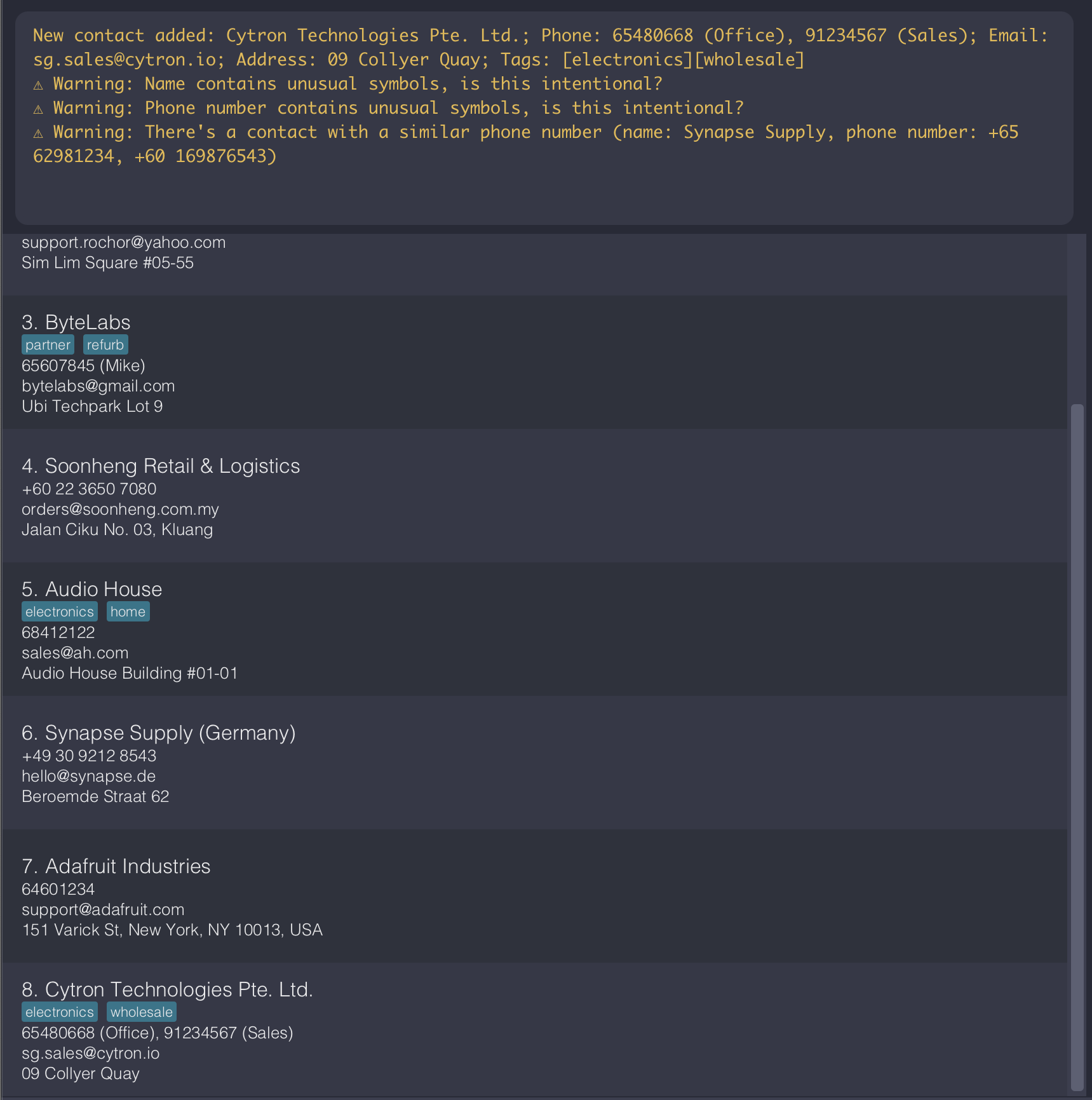
Tip: A contact can have any number of tags or none at all.
For more details on possible warnings and errors, refer to the troubleshooting guide below.
Listing all contacts : list
Shows a list of all active contacts in the VendorVault.
Format:
list
Editing a contact : edit
Edits a contact with the given email. Only the fields you specify will be updated, all other fields stay the same.
Format:
edit EMAIL [n/NAME] [p/PHONE] [e/EMAIL] [a/ADDRESS] [t/TAG]…
Examples:
edit support@adafruit.com p/98196742 a/New York, USAUpdates the phone number and address.edit sg.sales@cytron.io n/Cytron t/Updates the name and clears all existing tags.
Expected output: The contact's updated fields are reflected immediately in the contact list. For example, editing e/ will show the new email, and editing n/ will show the updated name.
The same rules for multiple phone numbers and duplicates that apply to add also apply to edit. For more details on possible warnings and errors, refer to the troubleshooting guide below.
Locating contacts: find
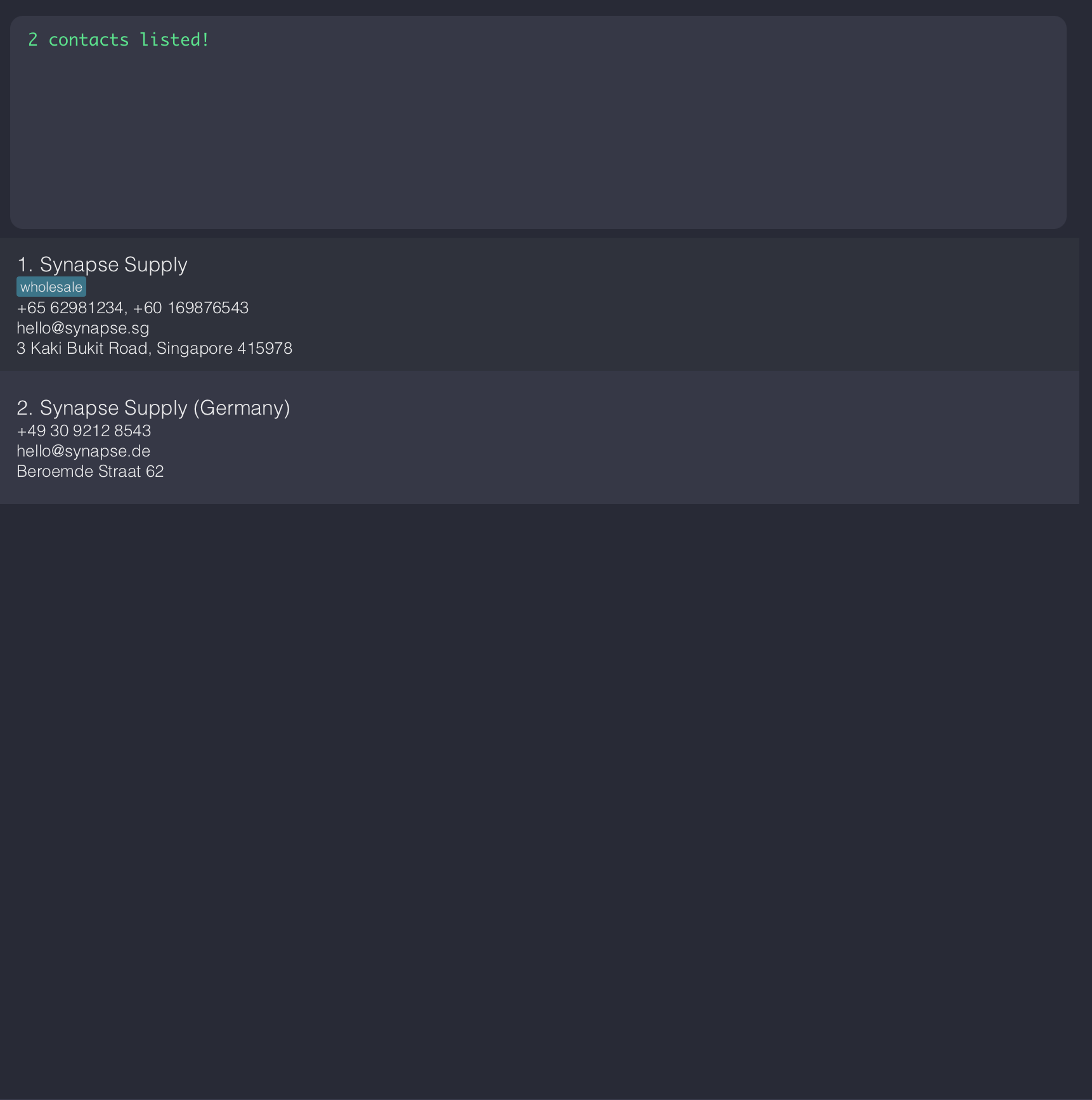
Displays contacts whose name contain any of the given keyword(s).
Format:
find KEYWORD [MORE_KEYWORDS]
Examples:
find syn
Expected output:
Archiving a contact : archive
Hides a contact from the home page. It is not permanently deleted and can be restored at any time.
Format:
archive EMAIL
Examples:
archive sg.sales@cytron.io
Expected output: The contact will no longer appear on the home page. However, it will still be available in the archived vendors page.
Tip: Archive a vendor you no longer work with, but may need to reference in future. To permanently delete a contact, use delete.
For more details on possible warnings and errors, refer to the troubleshooting guide below.
Restoring an archived contact : restore
Unhides a previously archived contact.
Format:
restore [EMAIL]
Examples:
restore: shows all archived contacts.restore sg.sales@cytron.io
Expected output (restore):
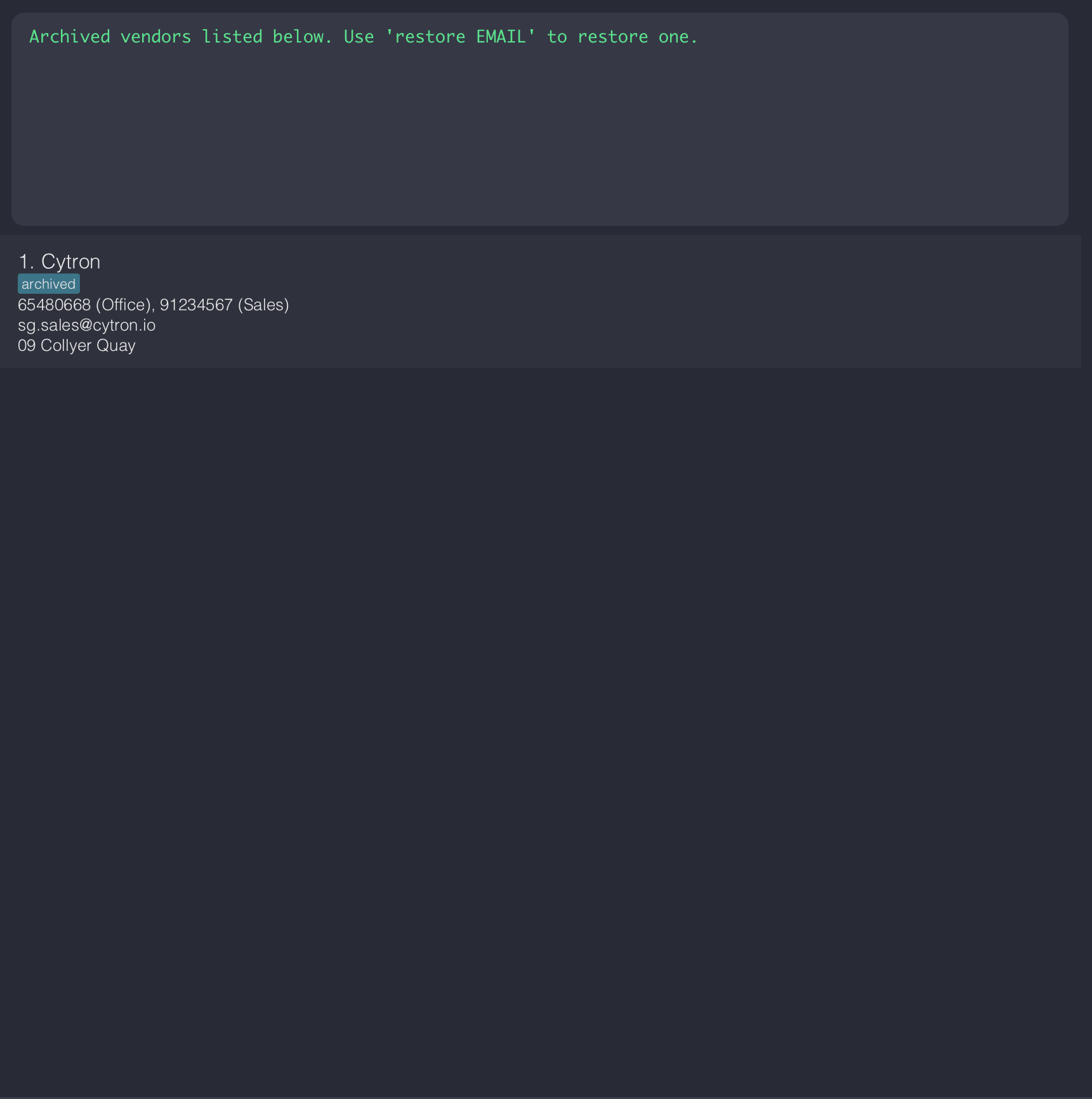
If EMAIL is omitted, all archived contacts will be displayed so you can find what you want to restore.
For more details on possible warnings and errors, refer to the troubleshooting guide below.
Deleting a contact : delete
Removes a vendor contact. You will be prompted to confirm the deletion.
Format:
delete EMAIL
Examples:
delete support@adafruit.com
For more details on possible warnings and errors, refer to the troubleshooting guide below.
Clearing all contacts: clear
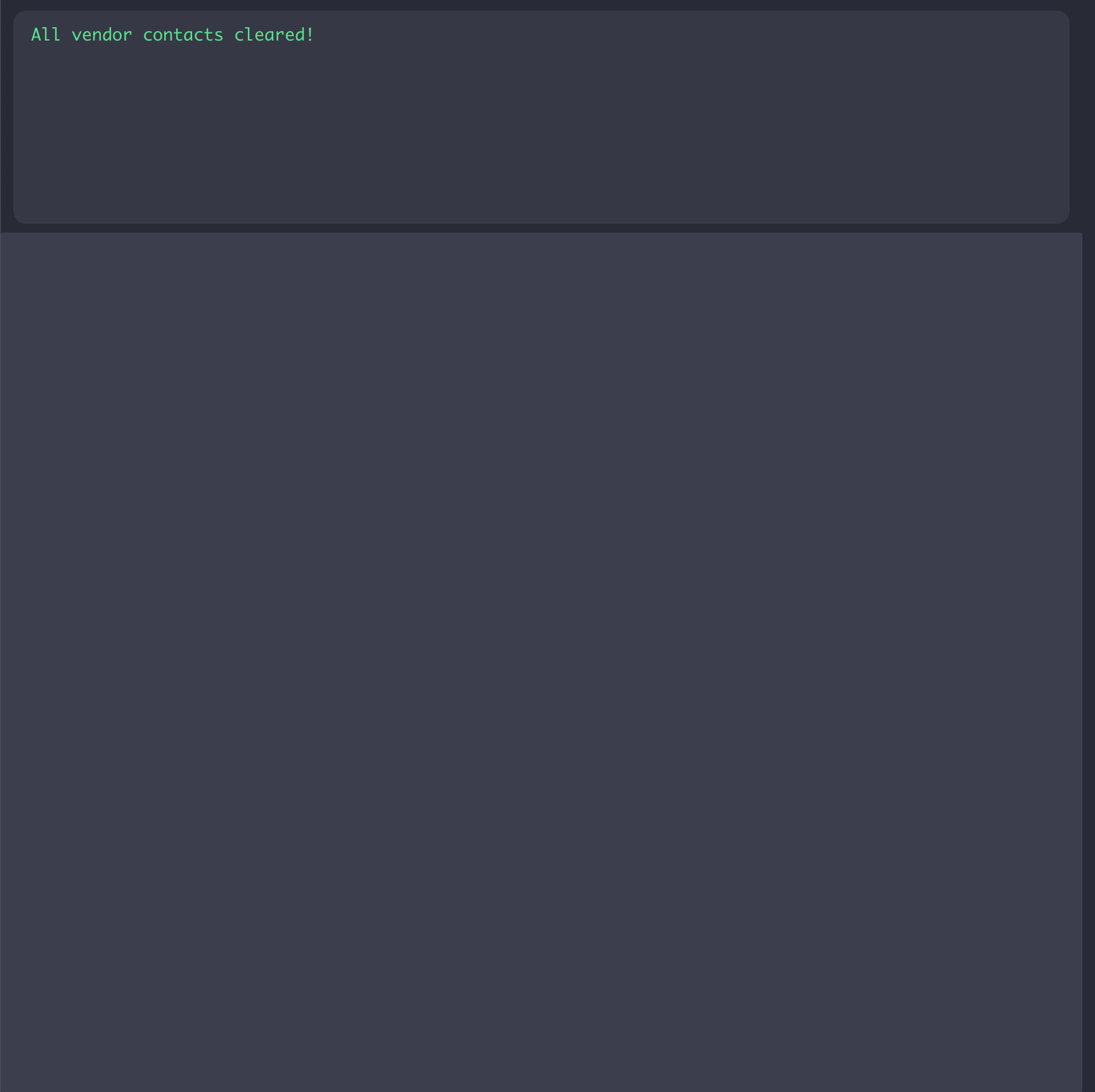
Removes all contacts permanently. You will be prompted to confirm the deletion.
Format:
clear
Expected output:
Managing Inventory
Adding a product: addproduct
Adds a product to the inventory.
Format:
addproduct id/IDENTIFIER n/NAME [q/QUANTITY] [th/RESTOCK_THRESHOLD] [e/VENDOR_EMAIL]
Examples:
addproduct id/SKU-288 n/HP LaserJet (M428fdw) q/17 th/15addproduct id/DE/5 n/PlayStation e/sg.sales@cytron.io
Expected output:
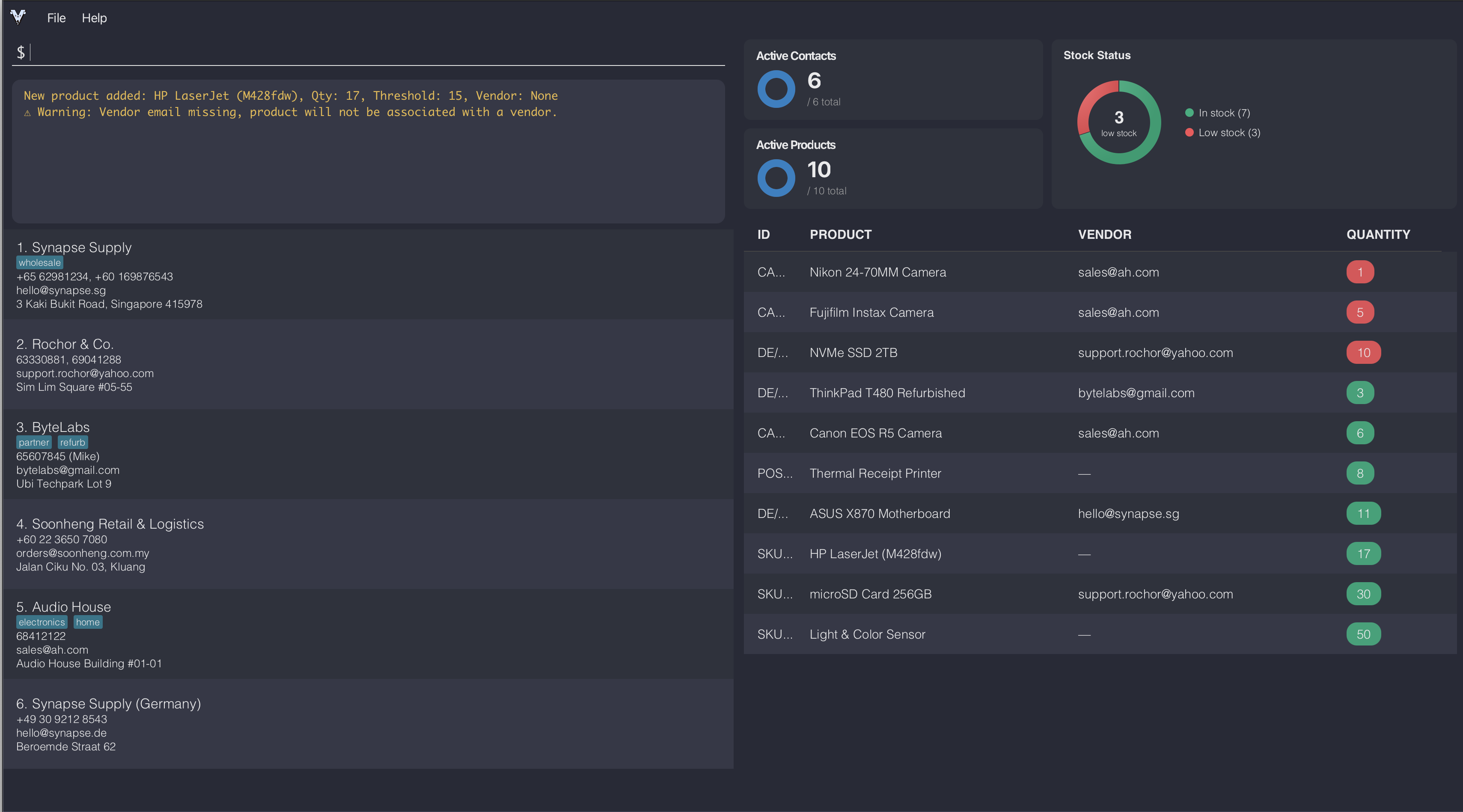
If quantity is omitted, it will default to 0. If restock threshold is omitted, it will default to your configured default threshold. If vendor email is omitted, product will not be associated with a vendor.
Tip: You can set your own default threshold.
For more details on possible warnings and errors, refer to the troubleshooting guide below.
Listing all products : listproduct
Shows a list of all active products in the inventory.
Format:
listproduct
Long names may be truncated in the list view. Use findproduct to view a product's full details.
Editing a product : editproduct
Edits a product with the given identifier. Only the fields you specify will be updated, all other fields stay the same.
Format:
editproduct IDENTIFIER [id/NEW_IDENTIFIER] [n/NAME] [q/QUANTITY] [th/RESTOCK_THRESHOLD] [e/VENDOR_EMAIL]
Examples:
editproduct SKU-288 id/SKU-299 n/HP LaserJet (M140w) q/35editproduct DE/5 e/hello@synapse.sg
Expected output: The product's updated fields are reflected immediately in the product list. For example, editing q/ will show the updated quantity, and editing e/ will show the new associated vendor email.
The same rules for email that apply to add also apply to edit. For more details on possible warnings and errors, refer to the troubleshooting guide below.
Locating products : findproduct
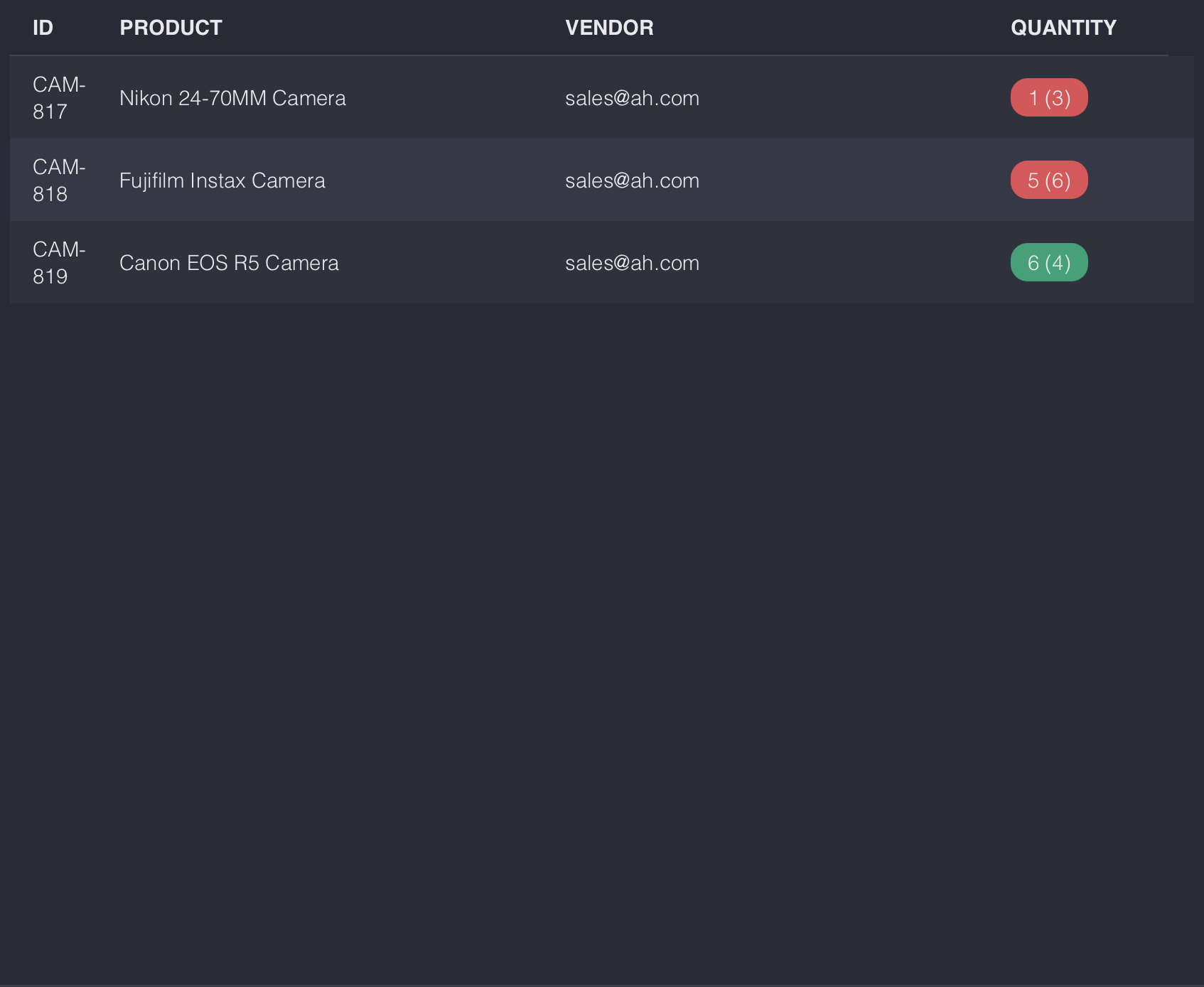
Displays products whose names contain any of the given keyword(s).
Format:
findproduct KEYWORD [MORE_KEYWORDS]
Examples:
findproduct camera
Expected output:
Archiving a product : archiveproduct
Hides a product from the home page. It is not permanently deleted and can be restored at any time.
Format:
archiveproduct IDENTIFIER
Examples:
archiveproduct DE/5
Expected output: The product will no longer appear on the home page. However, it will still be available in the archived products page.
Tip: Archive a product you no longer have, but may bring back in future. To permanently delete a product, use deleteproduct.
For more details on possible warnings and errors, refer to the troubleshooting guide below.
Restoring an archived product : restoreproduct
Unhides a previously archived product.
Format:
restoreproduct [IDENTIFIER]
Examples:
restoreproduct: shows all archived products.restoreproduct DE/5
Expected output: The product reappears in the active product list. If no identifier is given, all archived products are displayed so you can pick what to restore.
If IDENTIFIER is omitted or invalid, all archived products will be displayed, so you can find what you want to restore.
For more details on possible warnings and errors, refer to the troubleshooting guide below.
Deleting a product : deleteproduct
Removes a product. You will be prompted to confirm the deletion.
Format:
deleteproduct PRODUCT_IDENTIFIER
Examples:
deleteproduct DE/5
For more details on possible warnings and errors, refer to the troubleshooting guide below.
Clearing all products : clearproduct
Removes all products permanently. You will be prompted to confirm the deletion.
Format:
clearproduct
Expected output: Once confirmed, all products are permanently removed. The product list on the home page will now be empty.
Utility Commands
Viewing help : help
Opens a window with summary of commands.
Format:
help
Adding a command shortcut : alias
Creates a shortcut to an existing command (excluding alias).
Format:
alias [ORIGINAL_COMMAND] [ALIAS]
Example:
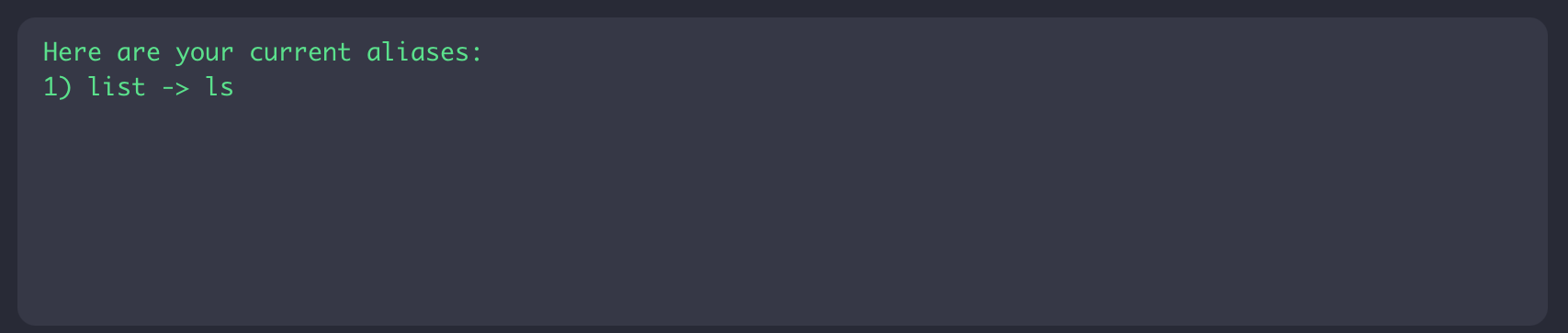
aliaslist all current aliases.alias list lsmapslsas an alias for thelistcommand.
Expected output (alias):
Deleting a command shortcut : deletealias
Removes an existing shortcut.
Format:
deletealias ALIAS
Example:
deletealias lsremoveslsas an alias
Changing default threshold : threshold
Changes the default restock threshold used when adding products.
Format:
threshold DEFAULT_THRESHOLD
Examples:
threshold 5
This change is saved across app sessions.
Undoing the previous change : undo
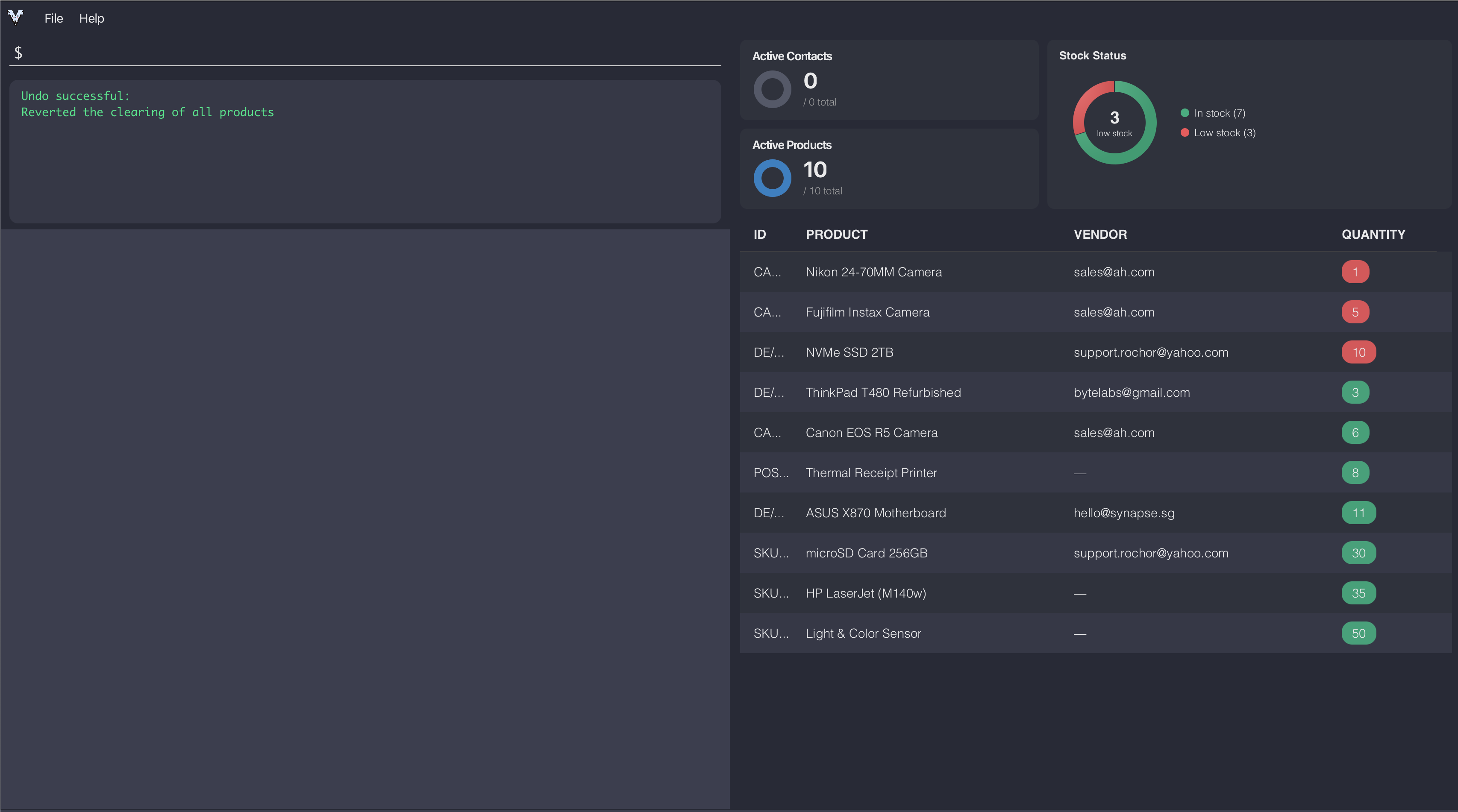
Undoes the last change to contacts or products. You can repeat the command to undo multiple changes in the current session.
Format:
undo
You can undo or redo actions like add, edit, delete, clear, archive, restore for vendors and products. Settings changes such as alias or threshold cannot be undone or redone.
Redoing the previous undone change : redo
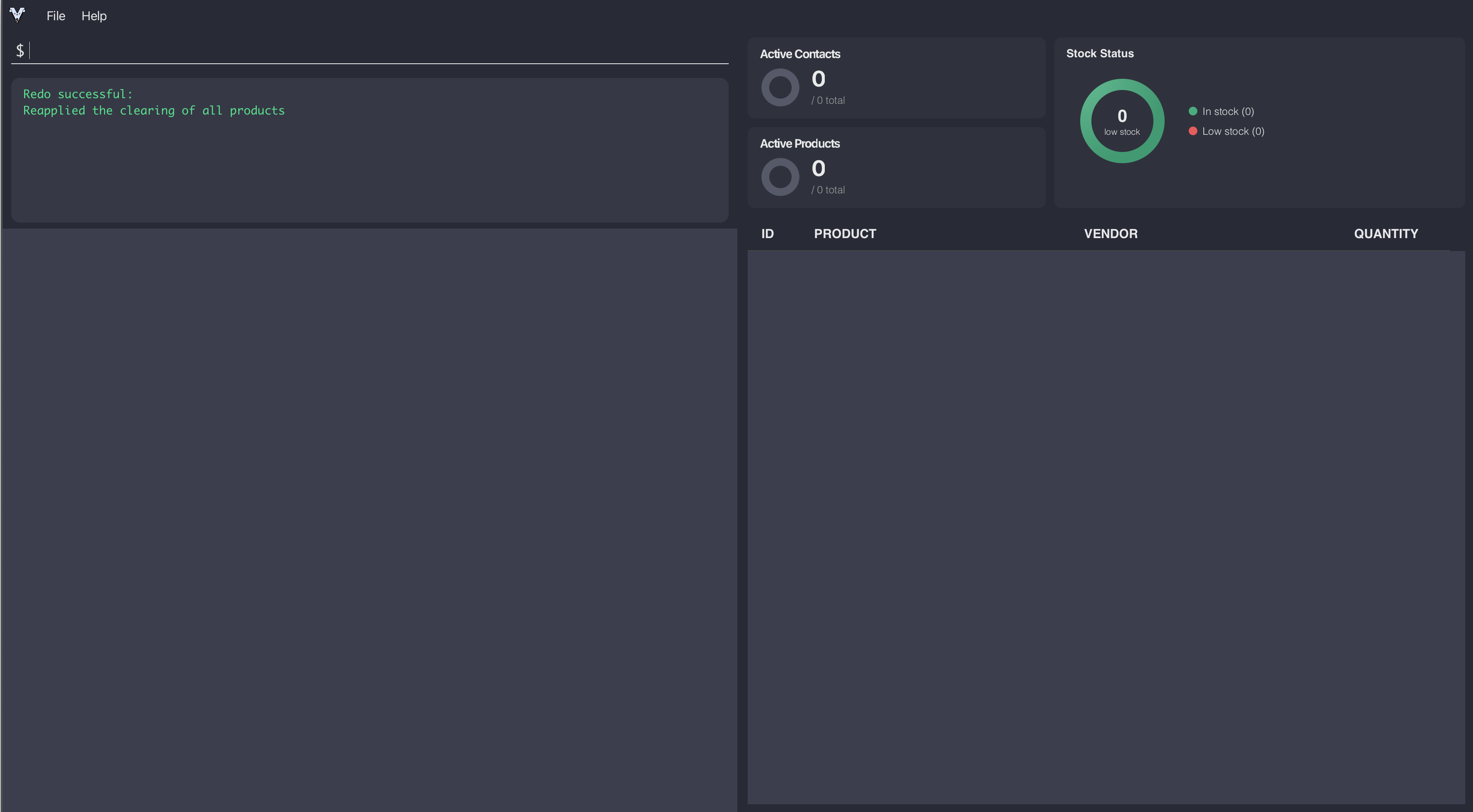
Redoes the last change you undid on contacts or products. You can repeat the command to redo multiple changes in the current session.
Format:
redo
Expected output:
Listing all contacts and products : listall
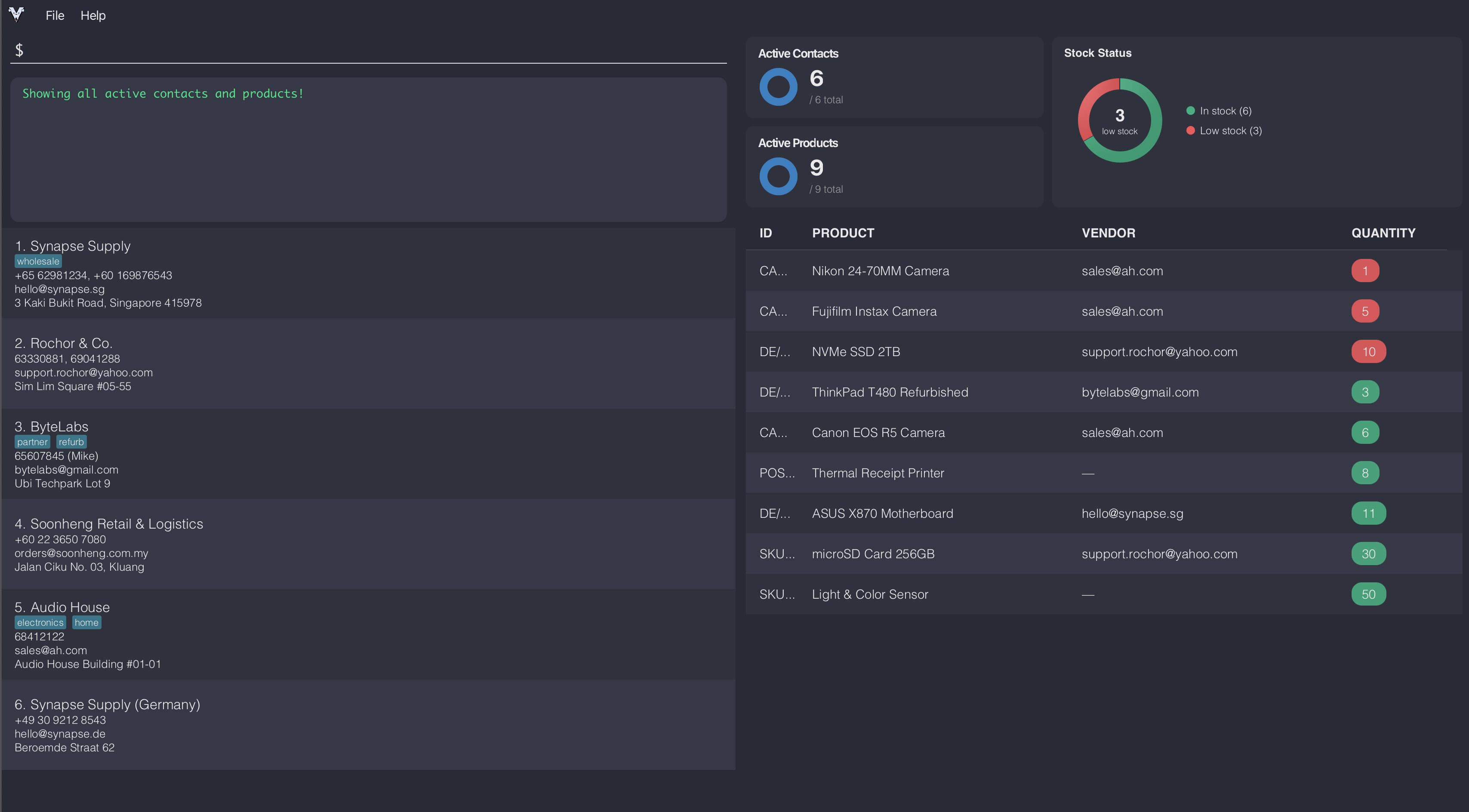
Shows a list of all active contacts and products at once.
Format:
listall
Expected output:
Exiting the app : exit
Exits VendorVault.
Format:
exit
Command Summary
Contact Commands
| Action | Command | Example | What it does |
|---|---|---|---|
| Add Contact | add n/NAME p/PHONE_NUMBER e/EMAIL a/ADDRESS [t/TAG]… | add n/TechSource Electronics p/61234567 e/sales@techsource.com a/15 Kallang Way, Singapore t/electronics | Adds a contact |
| Edit Contact | edit EMAIL [n/NAME] [p/PHONE_NUMBER] [e/EMAIL] [a/ADDRESS] [t/TAG]… | edit sales@techsource.com n/TechSource p/61234568 | Edits a contact's details |
| Delete Contact | delete EMAIL | delete sales@techsource.com | Deletes a contact |
| List Contacts | list | Lists active contacts | |
| Find Contacts | find KEYWORD [MORE_KEYWORDS] | find TechSource | Displays contacts whose names contain any of the given keyword(s) |
| Archive Contact | archive EMAIL | archive sales@techsource.com | Archives a contact |
| Restore Contact | restore [EMAIL] | restore sales@techsource.com | Restores an archived contact; lists all archived if no email given |
| Clear Contacts | clear | Clears all contacts |
Product Commands
| Action | Command | Example | What it does |
|---|---|---|---|
| Add Product | addproduct id/IDENTIFIER n/NAME [q/QUANTITY] [th/RESTOCK_THRESHOLD] [e/VENDOR_EMAIL] | addproduct id/SKU-1003 n/Arduino Uno R4 q/50 th/10 e/sales@techsource.com | Adds a product |
| Edit Product | editproduct IDENTIFIER [id/NEW_IDENTIFIER] [n/NAME] [q/QUANTITY] [th/RESTOCK_THRESHOLD] [e/VENDOR_EMAIL] | editproduct SKU-1003 n/Arduino Mega q/35 | Edits a product's details |
| Delete Product | deleteproduct PRODUCT_IDENTIFIER | deleteproduct SKU-1003 | Deletes a product |
| List Products | listproduct | Lists active products | |
| Find Products | findproduct KEYWORD [MORE_KEYWORDS] | findproduct uno | Displays products whose names contain any of the given keyword(s) |
| Archive Product | archiveproduct IDENTIFIER | archiveproduct SKU-1003 | Archives a product |
| Restore Product | restoreproduct [IDENTIFIER] | restoreproduct SKU-1003 | Restores an archived product; lists all archived if no identifier given |
| Clear Products | clearproduct | Clears all products |
General Commands
Action | Command | Example | What it does |
|---|---|---|---|
| Alias | alias [ORIGINAL_COMMAND] [ALIAS] | alias list ls | Adds a new alias; lists all aliases if no arguments given |
| Delete Alias | deletealias ALIAS | deletealias ls | Deletes an existing alias |
| Change Default Threshold | threshold DEFAULT_THRESHOLD | threshold 5 | Changes the default restock threshold |
| Undo | undo | Undoes previous change | |
| Redo | redo | Redoes last undone change | |
| List All | listall | Lists all active contacts and products | |
| Help | help | Shows a summary of commands | |
| Exit | exit | Exits VendorVault |
FAQ
Troubleshooting
Error messages mean the command did not succeed.
Warning messages mean the command succeeded, but VendorVault is flagging a possible issue.
Managing contacts
Troubleshooting add contact
Use this section when add fails or returns a warning.
| Scenario | Message shown | How to fix |
|---|---|---|
Missing one or more required prefixes (n/, p/, e/, a/) | Missing required field(s): ... | Include all required prefixed fields in your command. |
| No prefixes at all | Invalid Command format! ... | Use the full prefixed format, e.g. add n/... p/... e/... a/.... |
| Text appears before the first prefix | No non-prefix characters before prefix(es) is allowed, ... | Remove any text before n/. |
Same single-value field repeated (e.g. two n/ or two e/) | Multiple values specified for the following single-valued field(s): ... | Keep only one value for each of n/, p/, e/, a/. |
| Name is blank | Name should not be blank. | Provide a non-empty name after n/. |
| Name is too long | Name should be at most 256 characters. | Shorten the name. |
| Phone is blank | Phone number should not be blank. | Ensure each phone entry is not blank. |
| Phone is too short | Phone number(s) must be at least 3 digits ... | Ensure each phone entry has at least 3 digits. |
| Email is blank | Email should not be blank. | Provide a non-empty email after e/. |
| Email format is invalid | Email should be a valid format ... | Use a valid email format (e.g. sales@vendor.com). |
| Email is too long | Email should be at most 320 characters. | Shorten the email. |
| Address is blank | Address can take any values, and it should not be blank | Provide a non-empty address after a/. |
| Address is too long | Address should be at most 500 characters. | Shorten the address. |
| Tag is blank | Tag names should not be blank | Provide a non-empty tag name after eacht/. |
| Tag is too long | Tag names should be at most 50 characters | Shorten the tags that are too long. |
| Contact duplicates an existing contact by same email | This vendor contact already exists with the same email (name: NAME, email: EMAIL). | Change the email address, or edit the existing contact instead. |
Common add warnings:
| Warning trigger | Warning shown | What it means |
|---|---|---|
| Name has unusual symbols | ⚠ Warning: Name contains unusual symbols, is this intentional? | Name is accepted, but looks unusual. You can verify if you entered the correct name. |
| Phone includes unusual symbols/format | ⚠ Warning: Phone number contains unusual symbols, is this intentional? | Phone is accepted, but format may be unintended. You can safely ignore it if you're providing labels eg. 61234567 (Office) |
| Email is unusually long | ⚠ Warning: Email address is unusually long, is this intentional? | Email is accepted, but more than 256 characters. You can verify if the email entered is correct. |
| Similar name to an existing contact | ⚠ Warning: There's a contact with a similar name (name: <similar-name>), is this intentional? | Possible duplicate by similar name. You can check if the name in the warning message is the same vendor as what you were about to add. |
| Similar phone number to an existing contact | ⚠ Warning: There's a contact with a similar phone number (name: <name>, phone number: <similar-phone-number>) | Possible duplicate by similar phone number. You can check if the name in the warning message is the same vendor as what you were about to add. |
| Similar address to an existing contact | ⚠ Warning: There's a contact with a similar address (name: <name>, address: <similar-address>), is this intentional? | Possible duplicate/related location by address similarity. You can check if the name and address in the warning message belongs as what you were about to add. |
Tip: If multiple warnings apply, VendorVault shows each type of them (one per line) together with the success message.
Troubleshooting edit contact
Use this section when edit fails or returns a warning.
Most errors and warnings in add also occur in edit, except the first three errors and Tag is blank error. For these shared errors, refer to the troubleshooting add contact guide.
| Scenario | Message shown | How to fix |
|---|---|---|
| Missing/invalid target email (or extra non-prefixed text after email) | Invalid command format! ... | Follow the syntax edit EMAIL [n/...] [p/...] [e/...] [a/...] [t/...]. |
| No fields specified to edit | At least one field to edit must be provided. | Include at least one of n/, p/, e/, a/, or t/. |
| Target email not found | No contact with the specified email was found. | Check the contact exists and re-run with the correct existing email. |
Tip: Unlike add, edit command warnings only appear for fields you are actually editing. For example, if you edit only the phone number and there's a similar name in the database, you won't see a name warning.
Troubleshooting find contact
Use this section when find fails.
| Scenario | Message shown | How to fix |
|---|---|---|
| No keyword is provided | Invalid command format! ... | Provide keyword(s). |
Troubleshooting archive contact
Use this section when archive fails.
| Scenario | Message shown | How to fix |
|---|---|---|
| No email provided | Invalid Command format! ... | Provide the vendor's email: archive EMAIL. |
| Email format is invalid | Email should be a valid format (e.g. user@example.com). | Ensure the email is correctly formatted, e.g. archive sg.sales@cytron.io. |
| Email does not match any contact | No vendor found with the specified email. | Check the email is correct and that the contact exists in the active list. Use list to verify. |
| Contact is already archived | This vendor is already archived. Did you want to restore it? | Use restore EMAIL instead to bring the contact back to the active list. |
Troubleshooting restore contact
Use this section when restore fails.
| Scenario | Message shown | How to fix |
|---|---|---|
| Invalid email format provided | Email should be a valid format (e.g. user@example.com). | Ensure the email is correctly formatted, e.g. restore sg.sales@cytron.io. |
| No archived contacts exist (no email given) | No vendors are currently archived. Use 'archive EMAIL' to archive a vendor first. | Archive a contact first using archive EMAIL before attempting to restore. |
| Email provided but no matching archived contact | No archived vendor found with the specified email. (archived list is shown) | Check the email is correct. The archived contacts panel will be shown to help you find the right one. |
Troubleshooting delete contact
Use this section when delete fails.
| Scenario | Message shown | How to fix |
|---|---|---|
| No email is provided | Invalid Command format! ... | Provide the vendor's email: delete EMAIL. |
| Email Format is invalid | Email should be a valid format (e.g. user@example.com). | Provide the correct vendor's email: delete EMAIL. |
| Email provided but no matching contact | No contact with the specified email was found. | Ensures the vendor exists in the active list. Use list to check. |
Common delete warnings:
| Warning trigger | Warning shown | What it means |
|---|---|---|
| Contact with existing product(s) is deleted | ... product(s) became unassociated from contact (...). | The product(s) will not have a corresponding vendor. |
Managing inventory
Troubleshooting addproduct
Use this section when addproduct fails or returns a warning.
| Scenario | Message shown | How to fix |
|---|---|---|
Missing one or more required prefixes (id/, n/) | Missing required field(s): ... | Include all required prefixed fields in your command. |
| No prefixes at all | Invalid command format! ... | Use the full prefixed format, e.g. addproduct id/... n/.... |
| Text appears before the first prefix | No non-prefix characters before prefix(es) is allowed, ... | Remove any text before id/. |
Same single-value field repeated (e.g. two q/) | Multiple values specified for the following single-valued field(s): ... | Keep only one value for each of id/, n/, q/, th/, e/. |
| Identifier is blank | Identifier should not be blank. | Provide a non-empty identifier after id/. |
| Identifier is too long | Identifier should be at most 120 characters. | Shorten the identifier. |
| Name is blank | Name should not be blank. | Provide a non-empty name after n/. |
| Name is too long | Name should be at most 120 characters. | Shorten the name. |
| Quantity is invalid | Quantity should be a non-negative valid integer. | Ensure it is a whole number between 0 and 2,147,483,647. |
| Threshold is invalid | Restock threshold should be a non-negative valid integer. | Ensure it is a whole number between 0 and 2,147,483,647. |
| Product duplicates an existing product by same identifier | This product already exists with the same identifier (identifier: IDENTIFIER, name: NAME). | Change the identifier, or edit the existing product instead. |
| Product's vendor does not exist | Vendor email EMAIL does not match any existing contact. | Check that the email matches an existing contact's email, or add a new contact. |
Common addproduct warnings:
| Warning trigger | Warning shown | What it means |
|---|---|---|
q/ omitted | ⚠ Warning: Quantity missing, defaulted to 0. | Quantity was not provided so it defaults to 0. Edit it later with editproduct if needed. |
th/ omitted | ⚠ Warning: Restock threshold missing, defaulted to N. | Threshold was not provided so it defaults to the configured value. Edit with editproduct if needed. |
e/ omitted | ⚠ Warning: Vendor email missing, product will not be associated with a vendor. | No vendor is linked to the product. You can assign one later using editproduct IDENTIFIER e/EMAIL. |
| Identifier/Name has unusual symbols | ⚠ Warning: Identifier contains unusual symbols, is this intentional?⚠ Warning: Name contains unusual symbols, is this intentional? | Identifier/Name is accepted, but looks unusual. You can verify if you entered it correctly. |
| Similar name to an existing product | ⚠ Warning: There's a product with a similar name (name: <similar-name>), is this intentional? | Possible duplicate by similar name. You can check if the name in the warning message is the same as what you were about to add. |
Troubleshooting editproduct
Use this section when editproduct fails or returns a warning.
If you assign a vendor email to a product, the contact must already exist in VendorVault. If the contact is later deleted, the product will retain the email but the vendor will be unassociated. To fix this, either re-add the contact or clear the vendor email using editproduct IDENTIFIER e/.
| Scenario | Message shown | How to fix |
|---|---|---|
| No fields specified to edit | At least one field to edit must be provided. | Include at least one of id/, n/, q/, th/, or e/. |
| Identifier does not match any active product | No product found with the specified identifier. | Ensure the product exists in the active list. Use listproduct to check. |
| New identifier is already used by another product | This product already exists with the same identifier. | Choose a unique identifier. |
| Vendor email does not match any existing contact | No contact with the specified email was found. | Check that the email matches an existing contact, or add the contact first using add. |
Common editproduct warnings:
| Warning trigger | Warning shown | What it means |
|---|---|---|
| Edited name is similar to another product | ⚠ Warning: There's a product with a similar name (id: <id>, name: <similar-name>), is this intentional? | Possible duplicate by similar name. Check if the flagged product is the same as the one you are editing. |
| Edited quantity is at or below threshold | ⚠ Warning: Product stock is below threshold. | The product's stock has fallen to or below its restock threshold. Consider restocking. |
Tip: Warnings only appear for fields you are actually editing. For example, if you edit only the vendor email and the quantity is already below threshold, you will not see a stock warning. This prevents unnecessary alerts for unchanged fields.
Tip: If multiple warnings apply, VendorVault shows all of them (one per line) together with the success message.
Troubleshooting findproduct
Use this section when find fails.
| Scenario | Message shown | How to fix |
|---|---|---|
| No keyword is provided | Invalid command format! ... | Provide keyword(s). |
Troubleshooting archiveproduct
Use this section when archiveproduct fails.
| Scenario | Message shown | How to fix |
|---|---|---|
| No identifier provided | Invalid Command format! ... | Provide the product identifier: archiveproduct IDENTIFIER. |
| Identifier does not match any product | No product found with the specified identifier. | Check the identifier is correct and that the product exists in the active list. Use listproduct. |
| Product is already archived | This product is already archived. Did you want to restore it? | Use restoreproduct IDENTIFIER instead to bring the product back to the active list. |
Troubleshooting restoreproduct
Use this section when restoreproduct fails.
| Scenario | Message shown | How to fix |
|---|---|---|
| No archived products exist (no identifier given) | No products are currently archived. Use 'archiveproduct IDENTIFIER' to archive a product first. | Archive a product first using archiveproduct IDENTIFIER before attempting to restore. |
| Identifier provided but no matching archived product | No archived product found with the specified identifier. (archived list shown) | Check the identifier is correct. The archived products panel will be shown to help you find the right one. |
Troubleshooting deleteproduct
Use this section when deleteproduct fails.
| Scenario | Message shown | How to fix |
|---|---|---|
| No identifier provided | Invalid Command format! ... | Provide the product identifier: deleteproduct IDENTIFIER. |
| Identifier does not match any product | No product found with the specified identifier. | Ensure the product exists in the active list. Use listproduct to check. |
General commands
Troubleshooting alias
Use this section when alias fails.
| Scenario | Message shown | How to fix |
|---|---|---|
| No new alias provided | Invalid Command format! ... | Provide the new alias: alias ORIGINAL_COMMAND NEW_ALIAS |
| Original Command does not exists | The original command (ORIGINAL COMMAND) does not exists. ... | Ensure the original command is in the help page. |
| Alias has been used | This alias already exists. ... | Provide a new alias, or use deletealias to delete the current alias. |
Troubleshooting deletealias
Use this section when deletealias fails.
| Scenario | Message shown | How to fix |
|---|---|---|
| No alias provided | Invalid Command format! ... | Provide an alias to delete: deletealias ALIAS |
| No alias given in alias list | No alias found in alias list. ... | Find the correct alias using alias then use deletealias ALIAS |
Troubleshooting threshold
Use this section when threshold fails.
| Scenario | Message shown | How to fix |
|---|---|---|
| No threshold provided | Invalid command format! ... | Provide a threshold. |
| Threshold is invalid | Restock threshold should be a non-negative valid integer. | Ensure threshold is a whole number between 0 and 2,147,483,647. |
Why am I seeing warnings?
Warnings are shown when the command succeeds, but the provided information does not meet the recommended format. This is to help you catch possible mistakes or unintended data formats. You can choose to ignore the warning if the data is correct as intended.